Google Analytics 4 (GA4) is the latest evolution in Google’s analytics platform, offering advanced tools for tracking and analyzing website performance. This guide highlights the key features and benefits of GA4 that can enhance your digital marketing strategies.
Key Features and Benefits of Google Analytics 4
- Event-Driven Data Model: GA4 captures every user interaction as an event, providing a detailed and flexible analysis of user behavior across websites and apps.
- Cross-Platform Tracking: Seamlessly integrates data from multiple platforms into a single property, offering a comprehensive view of the customer journey across devices.
- User-Centric Measurement: Utilizes machine learning to bridge data gaps, delivering a complete picture of user behavior even in the absence of cookies.
- Enhanced Reporting Interface: Focuses on the user lifecycle—including acquisition, engagement, monetization, and retention—aligning analytics more closely with business objectives.
- Predictive Metrics: Employs machine learning to offer insights such as purchase probability and churn likelihood, enabling proactive marketing strategies.
- Automated Event Tracking: Simplifies data collection by automatically capturing key events like page views, scrolls, and clicks without additional coding.
- Advanced Analysis Tools: Provides sophisticated techniques like funnel analysis and path analysis, facilitating deeper insights into user behavior and conversion patterns.
By leveraging these features, businesses can gain actionable insights into user interactions, optimize marketing efforts, and drive informed decisions to enhance website performance.
Table of Contents
Data tracking and analytics are essential to gaining insights into user behavior, traffic sources, and your website’s overall performance and effectiveness. Few tools have proven more potent at this than Google Analytics. In its most recent iteration, Google Analytics 4 (GA4), there’s more to marvel at and even greater insights to gain.
In this blog, the team of digital marketing pros at Social Firm walks you through the basics of Google Analytics 4 and how to track and analyze the data to get the most from your website.

An Overview of Google Analytics
As the paid media manager at Social Firm, I find Google Analytics 4 invaluable for tracking the success of our paid media campaigns and making data-driven decisions to optimize our strategies. Whether I’m analyzing traffic sources, user engagement, or conversion rates, GA4 provides the insights I need to consistently drive results for our clients.
Of course, before GA4, there was Google Analytics—or Universal Analytics—the previous iteration of Google’s analytics platform. Universal analytics was a tried-and-true tool that gave us a snapshot of our client’s online presence. However, with GA4, Google has completely revamped the platform and introduced a slew of new features that provide us with even greater insights.
I’ll turn to my colleague, Ally Gatien, one of Social Firm’s digital specialists, to walk you through some of the key differences and features worth knowing about GA4.

Key Differences Between Universal Analytics and GA4
The most fundamental change in GA4 is its event-driven data model. Unlike Universal Google Analytics, which used a session-based model, GA4 treats every user interaction as an event. This approach provides a more flexible and comprehensive way to track, collect, and analyze both web and app data across platforms.
The cross-platform tracking is pretty seamless. It allows for multi-source analysis within a single property and provides a more holistic view of the entire customer journey across devices.
User-Centric Measurement and Enhanced Reporting
GA4 places a greater emphasis on user-centric measurement. It uses machine learning to fill in data gaps and provide a more complete picture of user behavior, even when cookies aren’t available.
Also, the reporting interface in GA4 has been redesigned to focus on the user lifecycle: acquisition, engagement, monetization, and retention, which aligns more closely with common business objectives.

New Features and Improvements in GA4
With GA4, Google didn’t just tweak Universal Analytics. It completely changed certain aspects and added important new features. For example, Google Analytics 4 leverages machine learning to offer predictive metrics, such as purchase and churn probability – insights that help us anticipate future customer actions and tailor our marketing strategies accordingly.
With Enhanced Measurement Events, GA4 automatically collects various events without requiring additional code, including page views, scrolls, outbound clicks, site searches, video engagement, and file downloads. This feature simplifies the data collection process and provides richer insights out of the box.
The Advanced Analysis Hub in GA4 offers more sophisticated analysis techniques, including funnel analysis, path analysis, and segment overlap. These tools enable deeper insights into user behavior and conversion patterns.
Because audiences can be somewhat unpredictable, it stands to reason that Google would address that in its analytics functions with Improved Audience Building. This allows you to create audiences based on any combination of events and user properties, providing more flexibility with audience definitions.

Event-Driven Data Model
The event-driven data model is at the core of Google Analytics 4’s functionality. Here’s what you need to know:
Events as the Building Blocks:
In GA4, every user interaction is captured as an event. This includes page views, button clicks, form submissions, and custom actions specific to your business.
Flexible Parameter Structure:
Each event can have up to 25 parameters, allowing for more detailed and customized data collection. This flexibility enables you to capture the specific data points that matter most to your business.
Automatically Collected Events:
GA4 automatically collects many common events, reducing the need for manual setup and ensuring you have essential data from the start.
Key Events:
Key Events in GA4 are crucial user interactions that measure engagement and conversions, including automatically collected and recommended events. These events generate insights about user behavior and are frequently utilized to create reports, establish goals, and analyze conversion paths.
Custom Events:
You can easily create custom events to track specific interactions unique to your website or app. This allows you to tailor your analytics to your particular business needs.
Enhanced Measurement:
This feature allows you to toggle on additional event tracking without modifying your website’s code, making it easier to collect comprehensive data.
Understanding these key aspects of Google Analytics 4 will help you leverage its full potential for tracking and analyzing your website’s performance. As you continue this guide, you’ll learn how to set up GA4, dive into its key metrics and reports, and discuss advanced features that can provide valuable insights to drive your marketing efforts and business goals.
Geno Marinelli, another of our digital specialists, is here to walk you through the GA4 setup process.

Setting Up Google Analytics 4
Setting up Google Analytics 4 is crucial in leveraging this powerful tool for tracking and analyzing your website’s performance. This section will guide you through creating a GA4 property, installing the tracking code, and setting up data streams for your web and app platforms.

Creating a GA4 Property
Access Google Analytics:
Start by navigating to the Google Analytics website and signing in with your Google account. If you don’t have a Google Analytics account, you’ll need to create one.
Create a New Property:
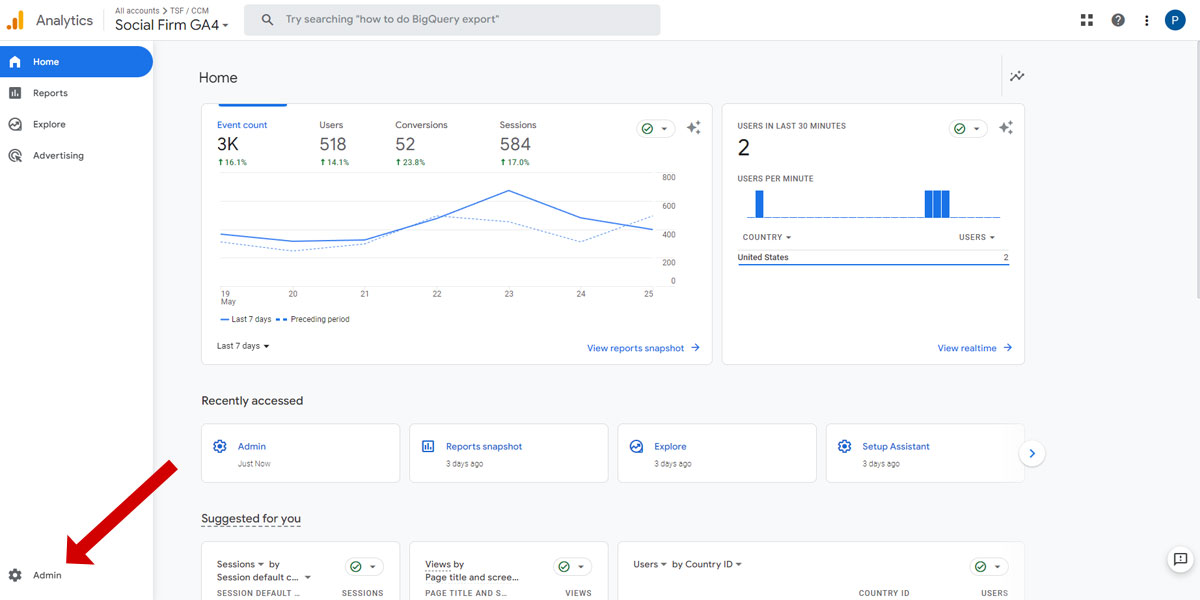
- Click on the “Admin” gear icon in the lower-left corner.
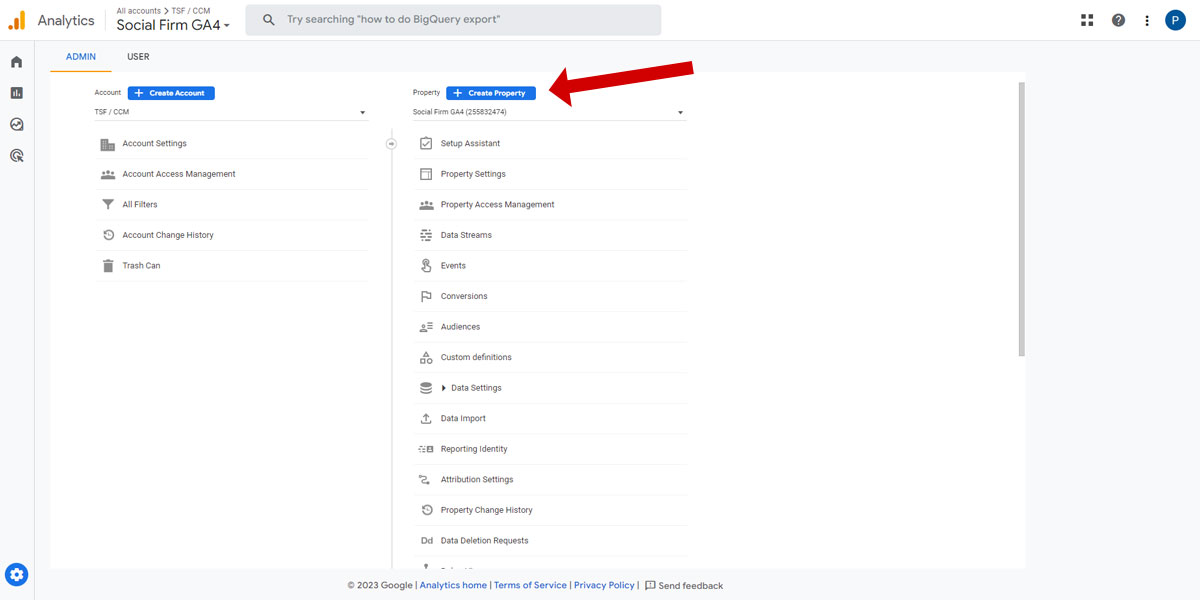
- In the Account column, select the desired account (or create a new one).
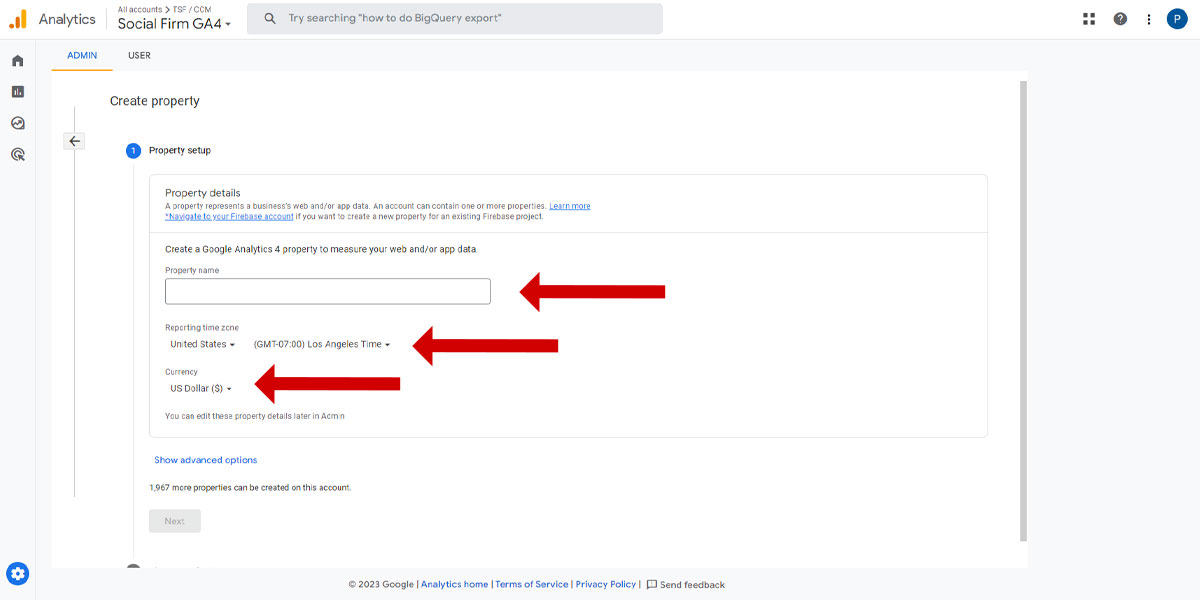
- In the Property column, click “Create Property.”
- Choose “Web” as your platform.
- Enter your website name and select your reporting time zone and currency.

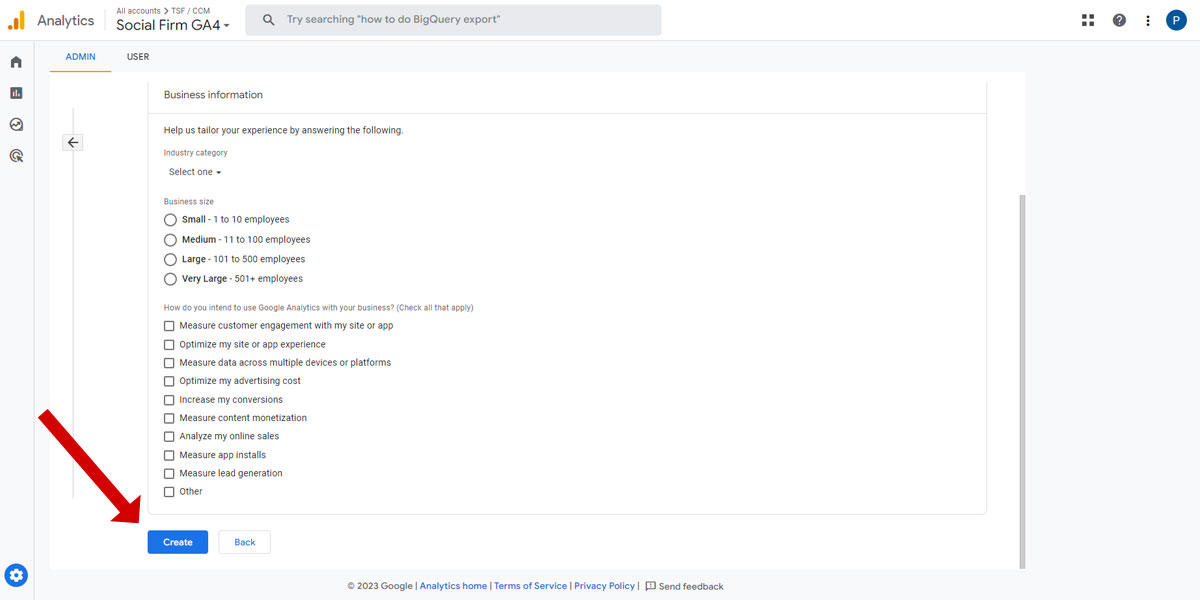
Complete the Business Information:
Fill in details about your business type, industry category, and size.

Choose your Business Objectives:
Select the goals you want to track, such as “Generate leads” or “Create content.”
Set up Your First Data Stream:
After creating the property, you’ll be prompted to set up a data stream. Click “Web” and enter your website URL.

Installing the GA4 Tracking Code:
Once you’ve created your GA4 property and data stream, you need to add the tracking code to your website to enable data collection:
- Get your Measurement ID: In your GA4 property, go to Admin > Data Streams > [Your Web Stream]. You’ll see your Measurement ID (it starts with “G-“).
- Add the GA4 tracking code.
There are two main ways to add the tracking code:
Directly on your website
- Copy the provided tracking code snippet.
- Paste it into the section of every page of your website.
- If you’re using a content management system (CMS), you may be able to add this code to your theme settings or use a plugin.

Using Google Tag Manager (recommended)
- If you’re not using Google Tag Manager, set up an account and container.
- In Tag Manager, create a new tag.
- Choose “Google Analytics: GA4 Event” as the tag type.
- Enter your Measurement ID.
- Set the trigger to fire on “All Pages.”
- Publish your container.
Verify the Installation:
Use the GA4 DebugView or real-time reports to confirm the data is collected correctly.
Setting up Data Streams (website, iOS app, Android app)
GA4 allows you to set up multiple data streams within a single property, enabling cross-platform tracking:
Web Data Stream:
You already set this up in the initial property creation. If you have multiple websites, you can add additional web streams.
iOS App Data Stream:
- In your GA4 property, go to Admin > Data Streams > Add Stream > iOS app.
- Enter your app name and App Store ID.
- Follow the instructions to integrate the Firebase SDK into your iOS app.
Android App Data Stream:
- Go to Admin > Data Streams > Add Stream > Android app.
- Enter your app name and package name.
- Follow the instructions to integrate the Firebase SDK into your Android app.
Configure Stream Settings: For each stream, you can:
- Enable enhanced measurement events.
- Set up custom events and conversions.
- Configure user ID settings for cross-device tracking.
By setting up your GA4 property correctly and ensuring proper data collection across all your platforms, you’re laying the foundation for comprehensive website performance analysis. This setup will allow you to gain valuable insights into user behavior, track marketing efforts, and make data-driven decisions to optimize your online presence.
Remember, while the initial setup is crucial, Google Analytics 4 is designed to be flexible and evolve with your needs. As you become more familiar with the platform, you can refine your setup, create custom events, and tailor your analytics to align perfectly with your business goals.
Key Metrics and Reports in GA4
The real benefit of Google Analytics 4 is its ability to help your team establish key metrics and reports by taking full advantage of its advanced features. Throughout my career working with businesses, both large and small, I’ve found that establishing metrics and reporting on them is a good way to measure the performance of your digital marketing efforts, keep stakeholders engaged, and, ultimately, drive business growth.
Too often, however, reports are produced and never looked at again. This is a waste of time and resources. Analytics should be a tool that helps your team with effective decision-making and focused action. That’s where GA4’s reports and features can be game-changers.
Let’s explore the main types of reports available in GA4 and the important metrics they provide.

Real-Time Reports
Real-time reports in Google Analytics 4 (GA4) offer immediate insights into current user activity on your website or app. These reports provide a live view of active users over the last 30 minutes, including their locations and the pages they’re viewing. They also display the most frequent events and conversions happening in real-time.
By showcasing key metrics such as active users, top events, and top conversions as they occur, Real-Time Reports enable you to monitor your digital presence instantly. This immediacy allows for quick decision-making and timely optimization of user experience, making it a valuable tool for responsive website management and marketing strategies.

User Acquisition Reports
User Acquisition Reports in GA4 provide valuable insights into how visitors discover and reach your website. These reports offer a comprehensive view of your acquisition channels’ performance, including a summary of new users, engaged sessions, and engagement rates for each channel. They break down traffic sources such as organic search, paid search, social media, and direct visits, allowing you to assess the most effective channels.
For those with linked Google Ads accounts, these reports display campaign performance data and metrics such as new users, engaged sessions, engagement rate, and session source/medium.

Engagement Reports
Engagement Reports in GA4 reveal how users interact with your website or app content. These reports summarize key engagement metrics, show the most visited pages or screens, track specific user interactions as events, and detail important conversions.
By focusing on metrics like engaged sessions, engagement rate, average engagement time, and event count, these reports help businesses optimize their content strategy and user experience. This data enables companies to refine their digital platforms, improving overall performance and user satisfaction.

Monetization Reports
Monetization Reports in GA4 are essential for e-commerce sites and apps with in-app purchases. They provide critical insights into revenue and purchase behavior. These reports offer an e-commerce overview summarizing order data and key metrics such as total revenue, transactions, average order value, and items purchased.
For mobile apps, they track in-app purchase events, while sites using Google Ad Manager can view ad revenue data to enhance e-commerce operations and profitability.

Retention Reports
GA4’s Retention Reports provide insights into how effectively a business maintains its user base over time. This can be critical longitudinal information that clearly illustrates the percentage of users who return to a site or app, allowing companies to gauge user loyalty and engagement longevity.
Knowing the lifetime value of users from various acquisition sources helps businesses understand which channels bring in the most valuable long-term customers. With this knowledge, strategies can be developed to enhance user loyalty and maximize customer lifetime value.
Additional Reports
GA4 offers a range of additional reports that provide deeper insights into user behavior and website performance. These include bounce rate, which measures single-page sessions without interaction; conversion rate, showing the percentage of sessions resulting in desired actions; user stickiness, indicating how frequently users engage with your site; session duration, revealing the average time users spend on your site; and pages/screens per session, demonstrating the depth of user engagement.
Making the Most of GA4’s Reports and Metrics
Maximize the value of GA4’s analytics capabilities by having your team take a proactive and customized approach. Start by using the custom report builder to create tailored reports that align with your specific business objectives. Set up custom events and conversions to ensure you’re tracking the most relevant actions for your organization.
Take advantage of GA4’s comparison feature to analyze performance differences between various user segments. For a more in-depth analysis, utilize the advanced tools available in the Analysis Hub, which we’ll examine in the next section.
Advanced Features of GA4
If your team is ready to take it to the next level, delve into some of the Google Analytics 4 advanced features. These features can provide deeper insights into user behavior and help you make more informed decisions about your website’s performance. Let’s explore some of these powerful tools:

Enhanced Measurement Events
Enhanced Measurement Events in GA4 is a feature that automatically collects common user interactions without additional coding. It tracks events like page views, scrolls, outbound clicks, site searches, video engagement, and file downloads. This feature simplifies data collection, provides richer insights immediately, and reduces the need for custom event tracking.
Enhanced Measurement Events can be configured and easily enabled or disabled for specific events in the data stream settings, allowing you to collect data tailored to your unique analytical needs.
Custom Events and Parameters
Custom Events and Parameters in GA4 allow you to track specific actions unique to your website or goals, complementing the pre-set Enhanced Measurement Events. These can be set up using Google Tag Manager or implementing custom code. Up to 25 custom parameters can be added per event for insights that offer greater depth and accuracy.
Best practices to get the most out of these features include careful event strategy planning, consistent naming conventions, and thorough documentation for easy reference across your entire team or organization.

Audience Building and Segmentation
The Audience Building and Segmentation features in Google Analytics 4 enable the creation of specific user segments for targeted analysis and marketing. Audiences can be built based on user properties, event parameters, or multiple conditions. These segments can be used to analyze the behavior of specific groups, create targeted campaigns, and export to Google Ads for retargeting.
Additionally, GA4’s machine-learning capabilities allow for creating predictive audiences based on anticipated behaviors. This powerful segmentation tool enhances the ability to understand and engage with different user groups, leading to more effective marketing strategies and improved user experiences.
Explorations – Analysis Hub
The Analysis Hub in GA4 provides even more analysis tools for better insights into your data. Let’s look at some of the ways it does this.
Exploration Techniques
Funnel Analysis visualizes conversion paths; Path Analysis reveals user navigation patterns; and Segment Overlap compares user groups.

Free-Form Exploration
This feature allows you to create custom reports with drag-and-drop interfaces, combining multiple dimensions and metrics for in-depth analysis.
BigQuery Integration
GA4’s BigQuery integration provides free access to advanced data analysis and storage capabilities. This new feature offers unsampled raw data access, enables complex SQL queries, and allows for the combination of other data sources. It’s particularly useful for custom reporting, advanced user behavior analysis, and long-term data storage.
Setup involves linking a GA4 property to a BigQuery project and configuring export settings. This powerful integration significantly expands analytical possibilities, allowing you to dive deeper into your data and uncover nuanced insights like never before.
As you become more familiar with these tools, you’ll be able to extract increasingly valuable insights to drive your business forward.
GA4 Integration with Other Google Tools
Google Analytics 4 becomes even more powerful when integrated with other Google tools. Let’s explore how GA4 can be connected with Google Ads, Google Search Console, and Google Data Studio.
Google Ads
GA4’s integration with Google Ads provides deeper insights into paid advertising performance. This feature allows for viewing Ad data within GA4 reports, importing GA4 goals and events as Ad conversions, creating remarketing audiences, and enabling more accurate cross-device conversion attribution. By bridging these platforms, businesses can optimize their ad campaigns with comprehensive data, enhance targeting precision, and improve overall marketing ROI. This powerful synergy between analytics and advertising platforms enables more effective, data-driven marketing strategies.
Google Ads Setup Process:
- Link your Google Ads account to your GA4 property.
- Enable auto-tagging in Google Ads.
- Import desired GA4 conversions into Google Ads.
- Set up audience sharing between GA4 and Google Ads.
The key metrics and reports offered in GA4’s Google Ads integration include campaign performance data in acquisition reports, cross-platform conversion tracking, and ROI analysis combining Ads cost data with GA4 conversion data.
Best practices involve regularly reviewing GA4 data to optimize campaigns, using audience insights for refined targeting, and analyzing the full customer journey from ad click to conversion. This integration enhances campaign effectiveness, improves targeting accuracy, and provides a comprehensive view of advertising impact.

Google Search Console
GA4’s integration with Google Search Console allows users to view search query data alongside user behavior metrics, analyze landing page performance for organic traffic, and identify SEO improvement opportunities.
The key reports that can be pulled include queries, landing pages, and countries, providing comprehensive search visibility data. Best practices involve using search query data for content strategy, identifying pages for SEO optimization, and monitoring search performance trends.
Google Search Console Setup Process:
Link your Search Console property to your GA4 property
Ensure the same website URL is used in both tools
Wait for data to populate (may take a few days)
Google Data Studio
Google Data Studio integration with GA4 enables the creation of customized, interactive dashboards that combine GA4 data with other sources. It offers easy report sharing, automated delivery, and features like diverse chart types, custom-calculated fields, date range controls, and interactive filters.
Best practices include setting clear dashboard goals, using logical layouts, providing context with visualizations, and regularly refining reports. This powerful integration enhances data visualization and reporting so businesses can create more impactful, comprehensive, and user-friendly analytics presentations.
Google Data Studio Setup Process:
Connect your GA4 property as a data source in Data Studio.
Choose the metrics and dimensions you want to include.
Design your report using Data Studio’s drag-and-drop interface.
Other Notable Integrations
Google Tag Manager:
Streamline your digital analytics by simplifying GA4 tracking code implementation and centrally managing marketing tags across platforms.
Firebase:
Firebase supercharges your app analytics with GA4 integration, offering unified cross-platform insights at no cost. Its seamless integration with other Firebase features empowers you to optimize user experiences and enhance app capabilities effortlessly.
You can create a powerful ecosystem of tools centered around Google Analytics 4 by leveraging these integrations. This integrated approach allows for more comprehensive tracking and analysis of your website’s performance.
Remember that while these integrations offer powerful capabilities, it’s important to have a clear strategy for how you’ll use the combined data. Focus on actionable insights that can drive meaningful improvements in your website’s performance and your overall digital marketing efforts.

Start Small, Think Big!
Google Analytics 4 marks a significant leap forward in web analytics, offering powerful tools for tracking and analyzing website performance. While GA4’s capabilities are extensive, don’t feel overwhelmed.
Start small. Begin by setting up your property and exploring basic reports, then gradually incorporate advanced features like custom events, audience building, and predictive metrics as you grow more comfortable.
Remember, mastering GA4 is an ongoing process. Stay curious and continue learning as both GA4 and the digital landscape evolve. By harnessing GA4’s full potential, you’re not just tracking performance—you’re unlocking data-driven growth opportunities for your digital presence.
Need help implementing GA4 or tackling other digital marketing challenges? Reach out to the website and digital marketing experts at Social Firm. Our team is ready to guide you through GA4 setup and help you achieve your digital marketing goals.